STEP 01Guest
Guest scans the QR on Table 5
What you seeThe menu opens already linked to Table 5. Nobody types a table number.
Behind the scenesEach table has its own QR, so every order is tagged with the right table automatically.
Hotel staff use the property link issued by their hotel, or enter through Hotel Console.
For dining restaurants
Each table gets its own QR. Guests order rounds, call for water or ask for the bill from their phone. Waiters accept, the kitchen cooks, and the table closes as one bill.
The whole journey in one line
Each box is one hand-off. The glow shows the order moving from one layer of the system to the next.
Step by step
Left: what the customer or your staff actually see. Right: what QRO POS does at that moment, in plain words.
What you seeThe menu opens already linked to Table 5. Nobody types a table number.
Behind the scenesEach table has its own QR, so every order is tagged with the right table automatically.
What you seeFive friends can each add dishes. The screen tells them “Everyone at this table shares one bill”.
Behind the scenesIf the table already has a running order, new items join it instead of opening a second bill.
What you seeThe order lands on the Table POS as “Pending Acceptance”. The waiter checks the guest is really seated and taps Accept.
Behind the scenesA guest-phone order at a table cannot skip this step, so an order sent from outside the restaurant never reaches the kitchen.
What you seeAccepted dishes appear on the Kitchen Display. Each dish is marked as it moves.
Behind the scenesDish status is live, so the waiter and the guest both see Preparing → Ready.
What you seeOrder more, Ask for bill, Water and Need help — one tap each.
Behind the scenesEach tap becomes a request on the staff screen. Tapping again within a short window does not create a duplicate; the guest sees it is already with staff.
What you seeThe waiter generates the bill and the cashier settles the payment.
Behind the scenesGenerating the bill freezes the order (no more items can be added) and stamps the time for GST records.
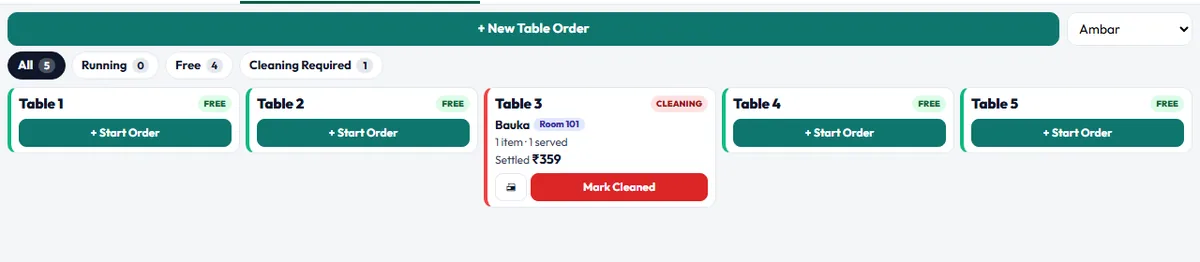
What you seeThe table shows “Cleaning required”, then “Free” once it is wiped.
Behind the scenesThe floor moves through occupied → bill generated → cleaning → free, so the host always knows which table to seat next.
System layers
Everyone works on the same order. Nobody re-types it, so the phone, the kitchen and the bill can never disagree.
What diners touch
What the floor team uses
What keeps it in order
What closes the loop
Real screens
Product captures from QRO POS using sample data. The animated mock-up at the top of this page shows the same flow in motion.
Feature callouts
Any number of phones add to one running order.
Guest orders wait for a waiter's Accept.
Order more, Ask for bill, Water, Need help.
Set a dine-in table price separate from takeaway.
Each dish tracked from Preparing to Ready.
Free, running, bill generated and cleaning states.
Staff can still take orders the classic way on Table POS.
Splitting one table bill across guests is planned.
FAQ
Yes. They order from the table QR, and a waiter accepts the order before it goes to the kitchen.
Both join the same running order. The table still gets one bill.
Yes. Staff can add items on the Table POS, and those go to the same table bill and kitchen screen.
Split billing by guest or item is on the roadmap. Today a table closes as one bill.
Ready to see the complete flow?
Tell us how you serve today. We will walk you through this exact flow with your own menu.