For small outlets, dhabas & street food

Scan, pay, collect. No queue at the counter.

Stick one QR on your thela, cart or counter. Customers order and pay from their own phone, your kitchen screen rings, and they collect when the food is ready.

  • No app to download β€” the menu opens in the phone browser
  • Money goes straight to your own UPI ID
  • Kitchen screen with a sound alert for every new order

The whole journey in one line

From the scan to the closed bill

Each box is one hand-off. The glow shows the order moving from one layer of the system to the next.

  1. 01QR scan
  2. 02Live menu
  3. 03Cart
  4. 04Price check
  5. 05UPI payment
  6. 06Kitchen screen
  7. 07Ready to collect

Step by step

What happens, and why it works.

Left: what the customer or your staff actually see. Right: what QRO POS does at that moment, in plain words.

  1. STEP 01Guest

    Customer scans the QR on your cart

    What you seeYour menu opens in the phone's browser. No app, no signup β€” they tap β€œEnter as guest” or log in with a mobile number.

    Behind the scenesThe QR carries your outlet's ID, so your menu loads β€” never another shop's β€” even though many outlets run on the same platform.

  2. STEP 02Guest

    They see only what you are selling today

    What you seeDishes, sizes (Half / Full) and prices. Anything you switched off is not orderable.

    Behind the scenesThe menu is served live from the server with today's availability and your QR price for each dish.

  3. STEP 03Server

    The order is checked before it is saved

    What you seeThe cart shows the total. One tap places the order.

    Behind the scenesThe server re-checks every price against your menu. A changed or tampered price is refused, so nobody can order a β‚Ή150 dish for β‚Ή50.

  4. STEP 04Guest

    Customer pays by UPI

    What you seeTheir UPI app (GPay, PhonePe, Paytm…) opens to pay your outlet.

    Behind the scenesPayment goes to your own UPI ID. You set it yourself: type the UPI ID, check the QR preview, save. No payment-gateway account needed.

  5. STEP 05Kitchen

    Your kitchen screen rings

    What you seeA ticket appears on the Kitchen Display with a sound alert β€” items, sizes and notes.

    Behind the scenesThe order is pushed live to every kitchen screen. No refresh button. Any phone, tablet or TV with a browser works as a kitchen screen.

  6. STEP 06Guest

    Customer watches the status

    What you seeTheir phone shows Preparing β†’ Ready, so they come to collect when it is done instead of crowding the counter.

    Behind the scenesThe tracking page reads the same order the kitchen updates, so both always agree.

  7. STEP 07Owner

    You close the day with real numbers

    What you seeThe dashboard shows today's orders and totals by channel β€” takeaway, dine-in, delivery.

    Behind the scenesβ€œToday” follows your business day (5 AM cut-off by default), so a late-night stall's sales are not split across two dates.

System layers

Four layers, one order record

Everyone works on the same order. Nobody re-types it, so the phone, the kitchen and the bill can never disagree.

LAYER 1

Customer phone

What the customer touches

  • QR menu in the browser
  • Cart with sizes and add-ons
  • UPI checkout
  • Live order status
LAYER 2

QRO POS server

What keeps it honest

  • Loads the right outlet from the QR
  • Live availability
  • Price check on every order
  • One order record for everyone
LAYER 3

Kitchen screen (KDS)

What the cook sees

  • New ticket with a sound alert
  • Items, sizes and notes
  • Preparing / Ready buttons
LAYER 4

Owner dashboard

What you manage

  • Menu, prices and stock on/off
  • Your UPI ID
  • Daily totals and reports
  • Counter POS for walk-in orders

Real screens

What it looks like

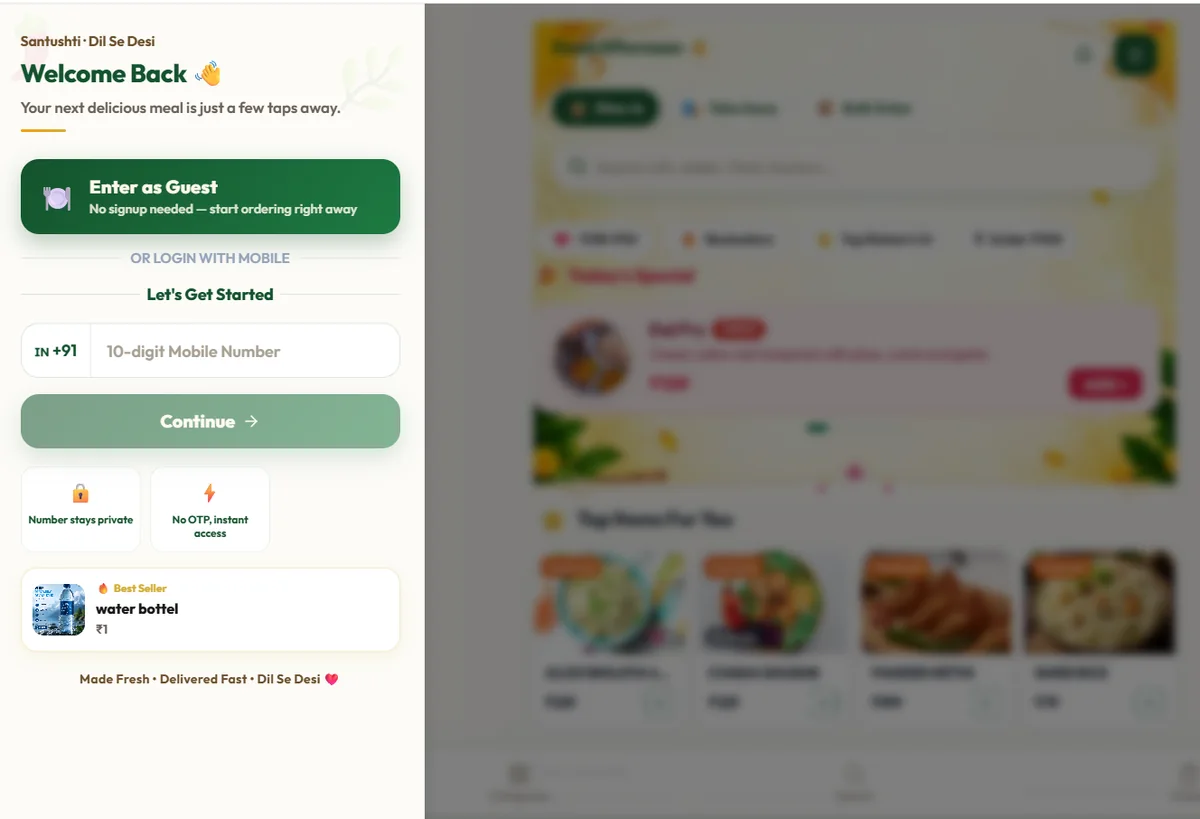
Product captures from QRO POS using sample data. The animated mock-up at the top of this page shows the same flow in motion.

QRO POS walk-up QR guest entry screen with Enter as Guest, optional mobile login and the menu behind it
Real guest screen: the customer enters as a guest or with a mobile number, then sees the live menu.

Feature callouts

What you get today

live

No app download

Works in any phone browser from a printed QR.

live

Your own UPI ID

Change or switch off UPI yourself, any time, from Settings.

live

Price-tamper protection

Every order's prices are re-checked on the server.

live

Live kitchen screen

Sound alert per order; any browser screen works.

live

QR price vs counter price

Set a different price for phone orders and counter orders.

live

Late-night business day

Sales after midnight stay in the same working day.

live

Counter POS

Ring up walk-in customers on the same menu and kitchen screen.

Coming later β€” not live yet

roadmap

Self-order kiosk hardware

Touch-screen kiosk with card terminal is planned.

FAQ

Simple answers

Does my customer need to download an app?

No. The QR opens your menu in the phone's browser. They can continue as a guest or log in with a mobile number.

Where does the money go?

To the UPI ID you configure. QRO POS does not sit between you and the customer's payment, and you can change the UPI ID yourself at any time.

Do I need special hardware for the kitchen?

No. The Kitchen Display runs in a browser, so a phone, tablet or TV you already own is enough.

Can phone orders cost differently from counter orders?

Yes. Each dish can carry a separate QR price and counter price. The server decides which one applies, so a customer cannot pick the cheaper one.

Other business types

Ready to see the complete flow?

See it running for small outlets & street food.

Tell us how you serve today. We will walk you through this exact flow with your own menu.